Installation in Shopify
This guide explains how to set up the MobilePay (ePay) payment module for your Shopify store. With this module, you can accept MobilePay as an independent payment method.
1. Go to the Shopify app store
Visit the installation page for the MobilePay (ePay) app on Shopify: https://apps.shopify.com/mobilepay-epay.
2. Select your Shopify store
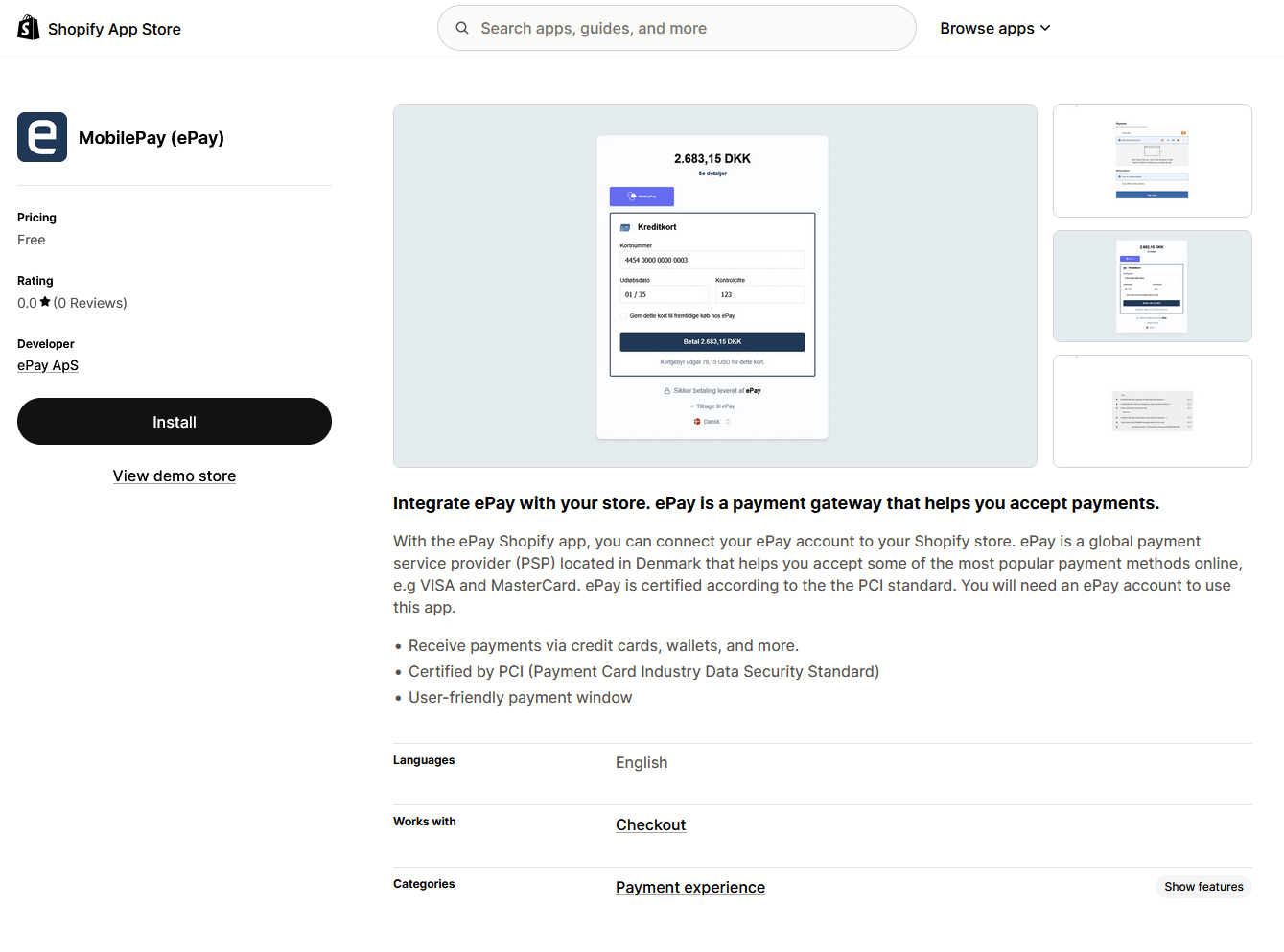
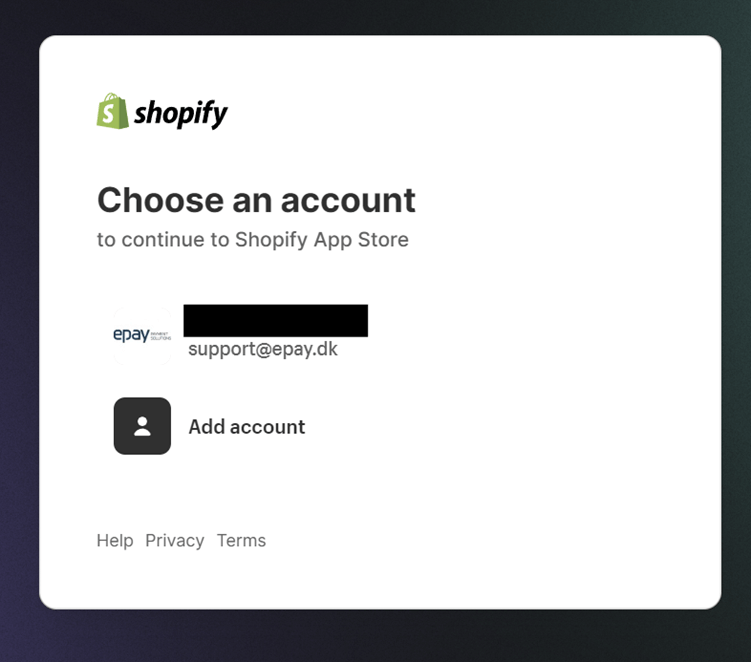
Click Install on the page and select the Shopify store that you wish to connect with the MobilePay (ePay) payment application.
3. Complete the installation
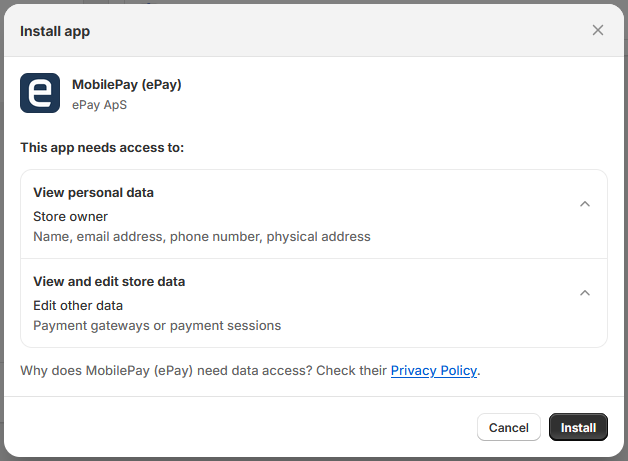
Complete the installation once you are logged in to your Shopify store
4. Enter your details
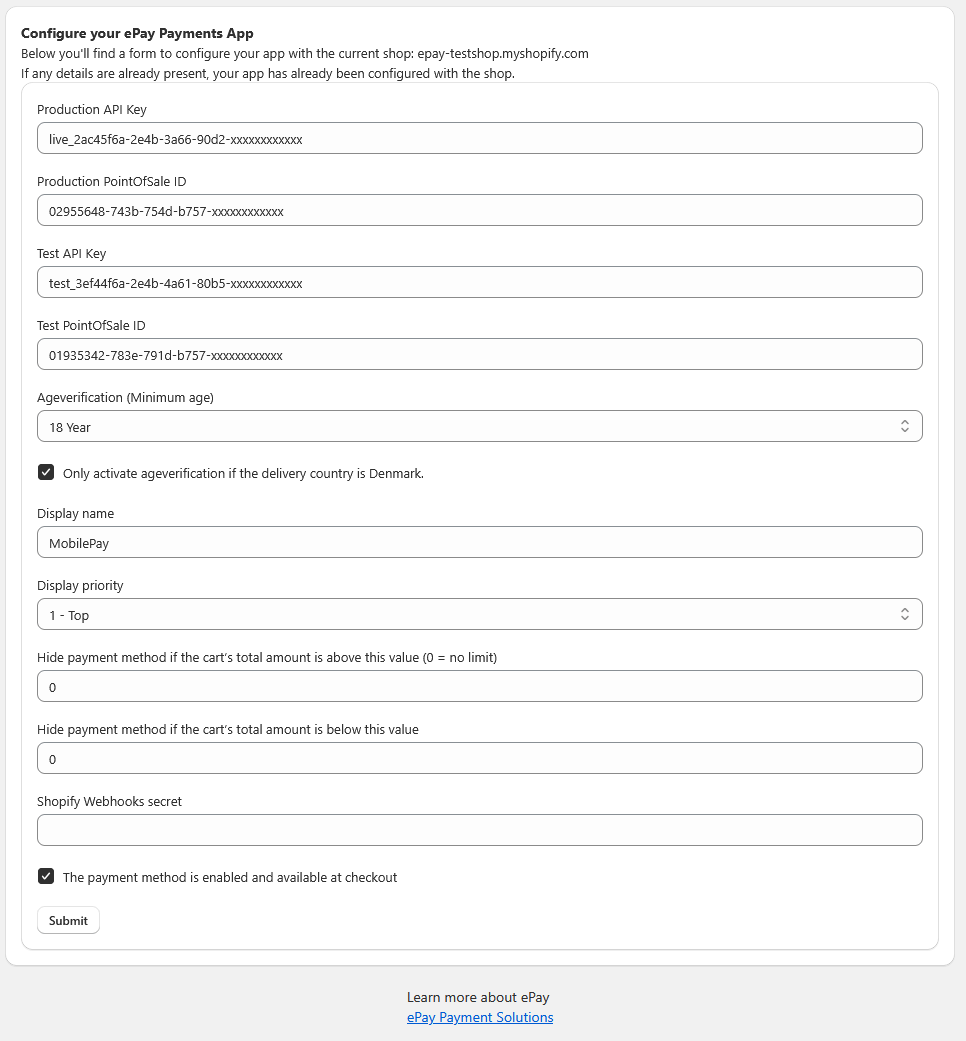
Enter your ePay account details as shown below and activate the plugin.
You can find your account details at https://app.epay.eu/login/
- Production API Key: Can be found in the ePay backoffice. *
- Production PointOfSale ID: Can be found in the ePay backoffice under Payment. *
- Test API Key: Can be found in the ePay backoffice. (Switch backoffice to test mode)
- Test PointOfSale ID: Can be found in the ePay backoffice under Payment. (Switch backoffice to test mode)
- Ageverification (Minimum age): If you want to use age verification, set the minimum age.
- Optional "Only activate ageverification if the delivery country is Denmark."
- Display name: The payment type’s display name in the checkout
- Display priority: The order of the payment type
- Hide payment method if the cart’s total amount is above this value (0 = no limit)
- Hide payment method if the cart’s total amount is below this value
- Shopify Webhooks secret
- The payment method is enabled and available at checkout. *
* = Required
5. Select payment methods
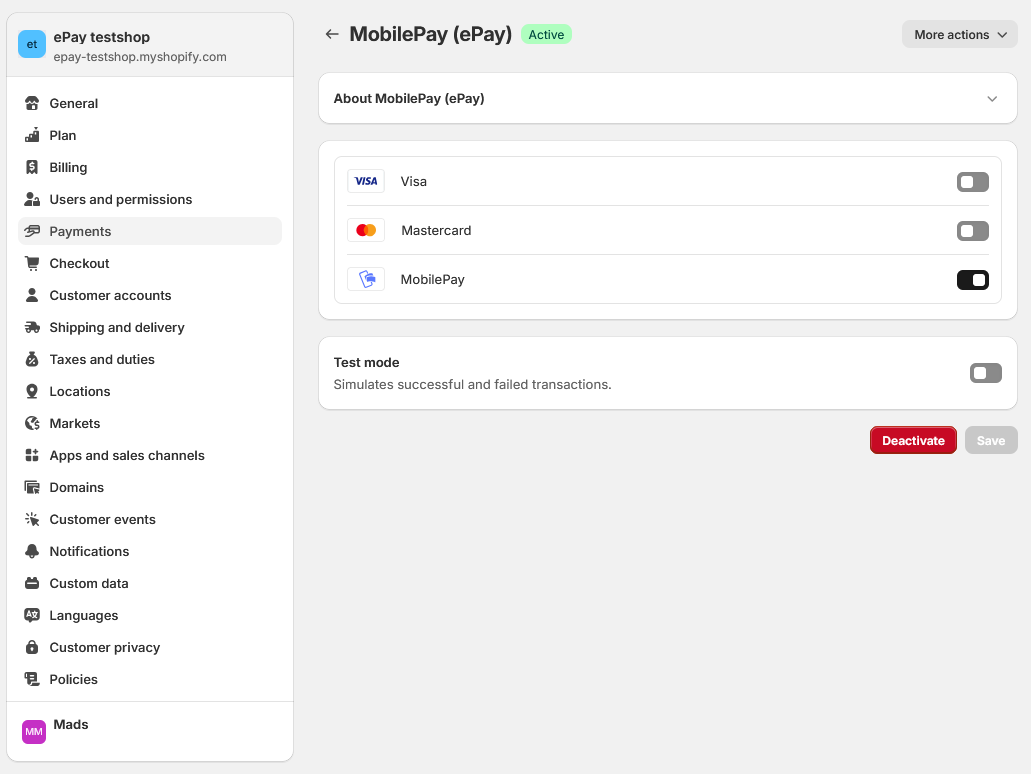
Select MobilePay.
6. Edit your ePay details
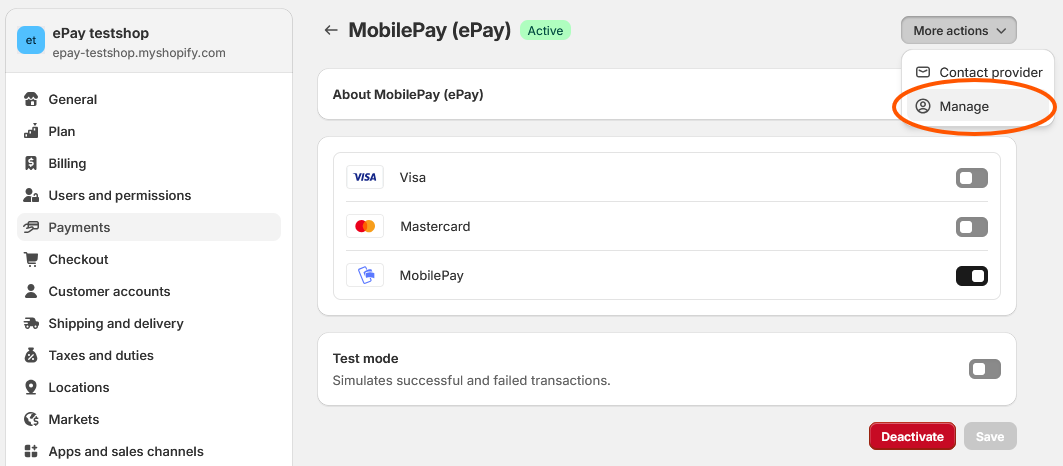
To edit your ePay MobilePay details, click on More actions -> Manage.